Okay, so you’ve chosen a template (or to build from scratch). Now what?
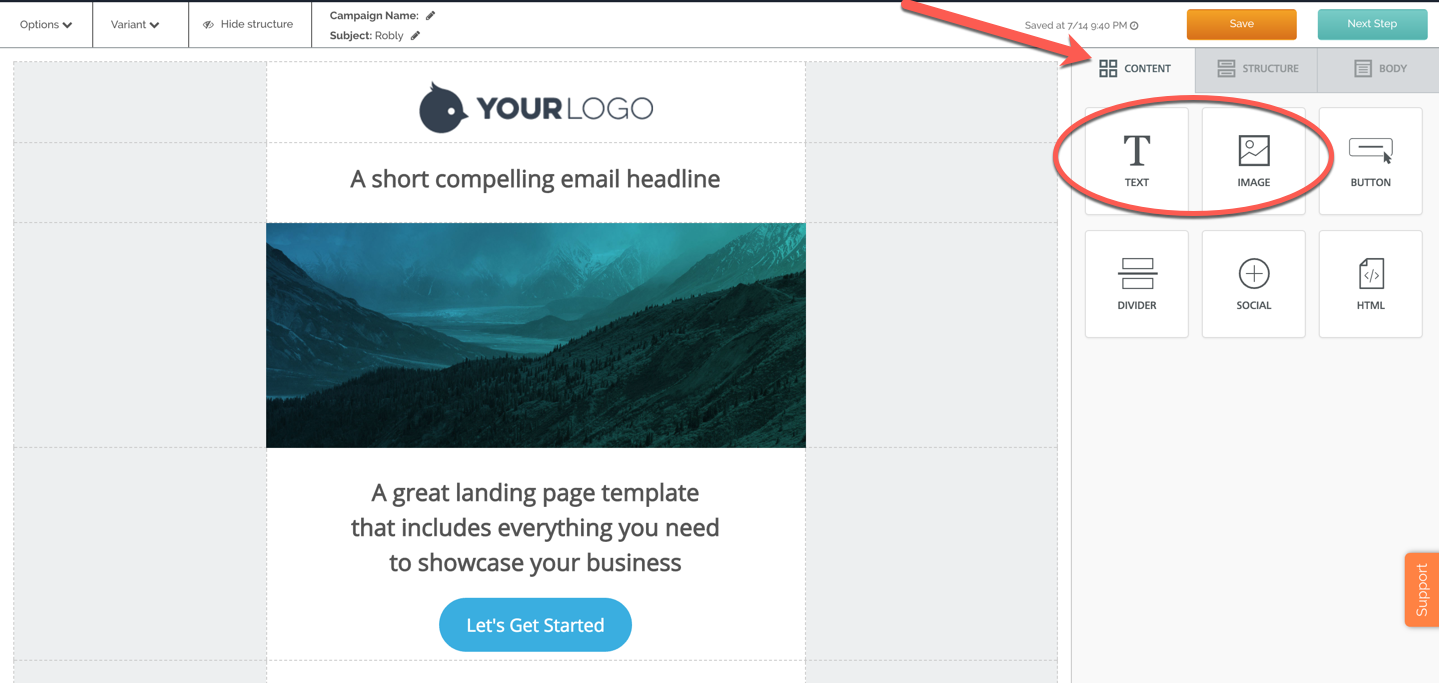
In the design editor, you’ll see a Drag and Drop Module menu on the right. Under Content you’ll see Text and Image.
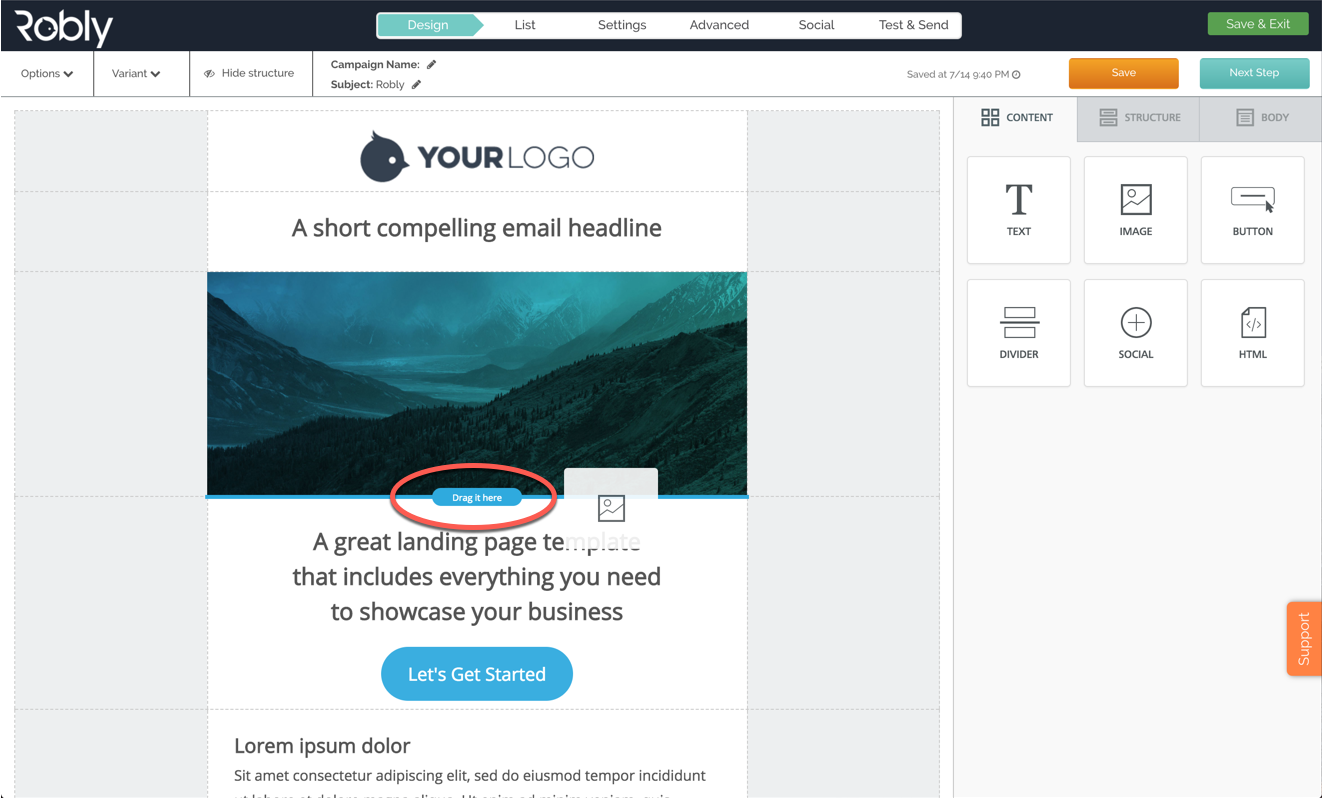
Click and drag either the text or image module into the body of your campaign. You will see a blue bar that says Drag it here. This is where the module will be inserted into your campaign.
You can edit text by first clicking into the text module. The text editor lets you edit the font formatting, add bullet lists, hyperlinks and other things.
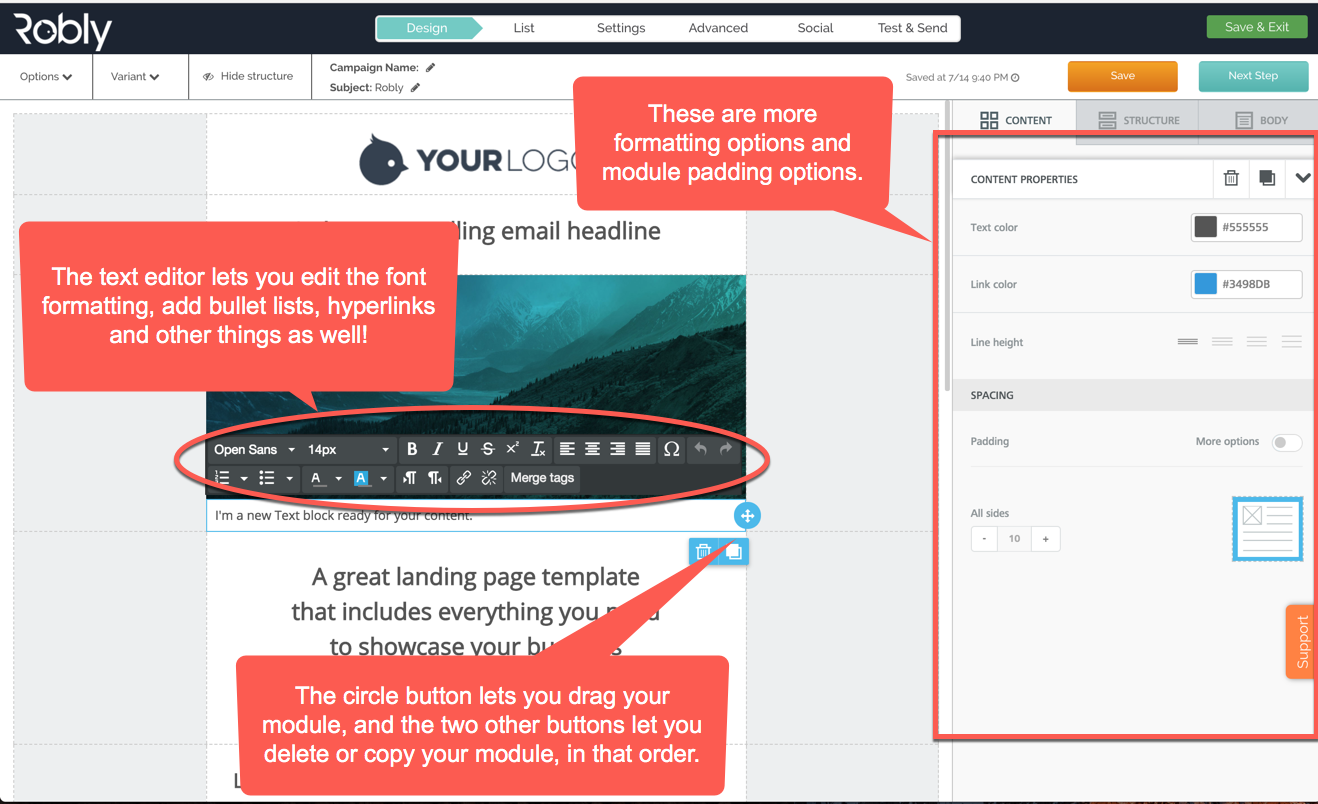
Image modules work in a similar manner. After you choose an image (either by uploading, importing, or choosing it from free photos), you add alternate text, a hyperlink to the image, or modify padding. You can edit the image by clicking Apply effects & more.
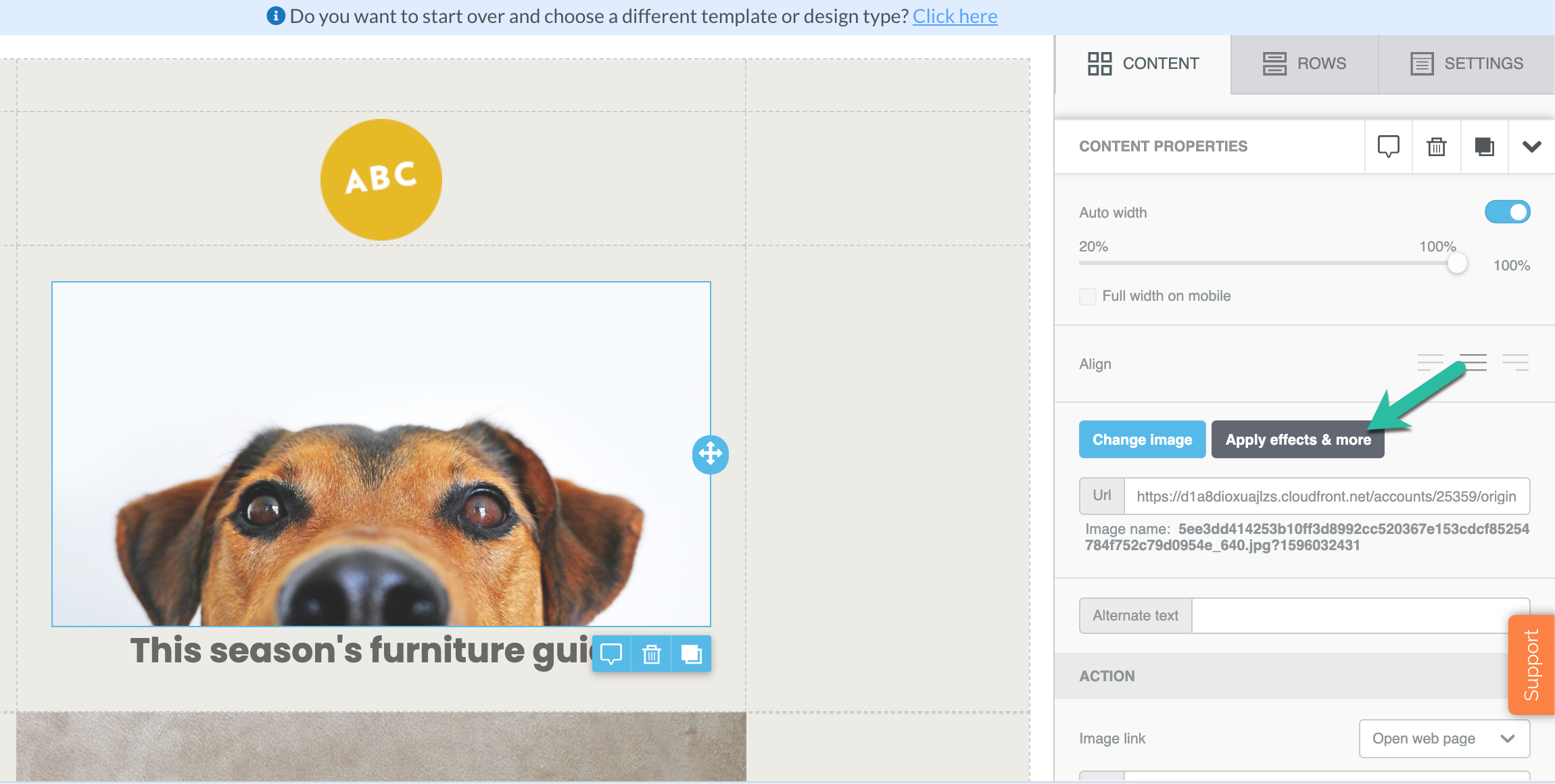
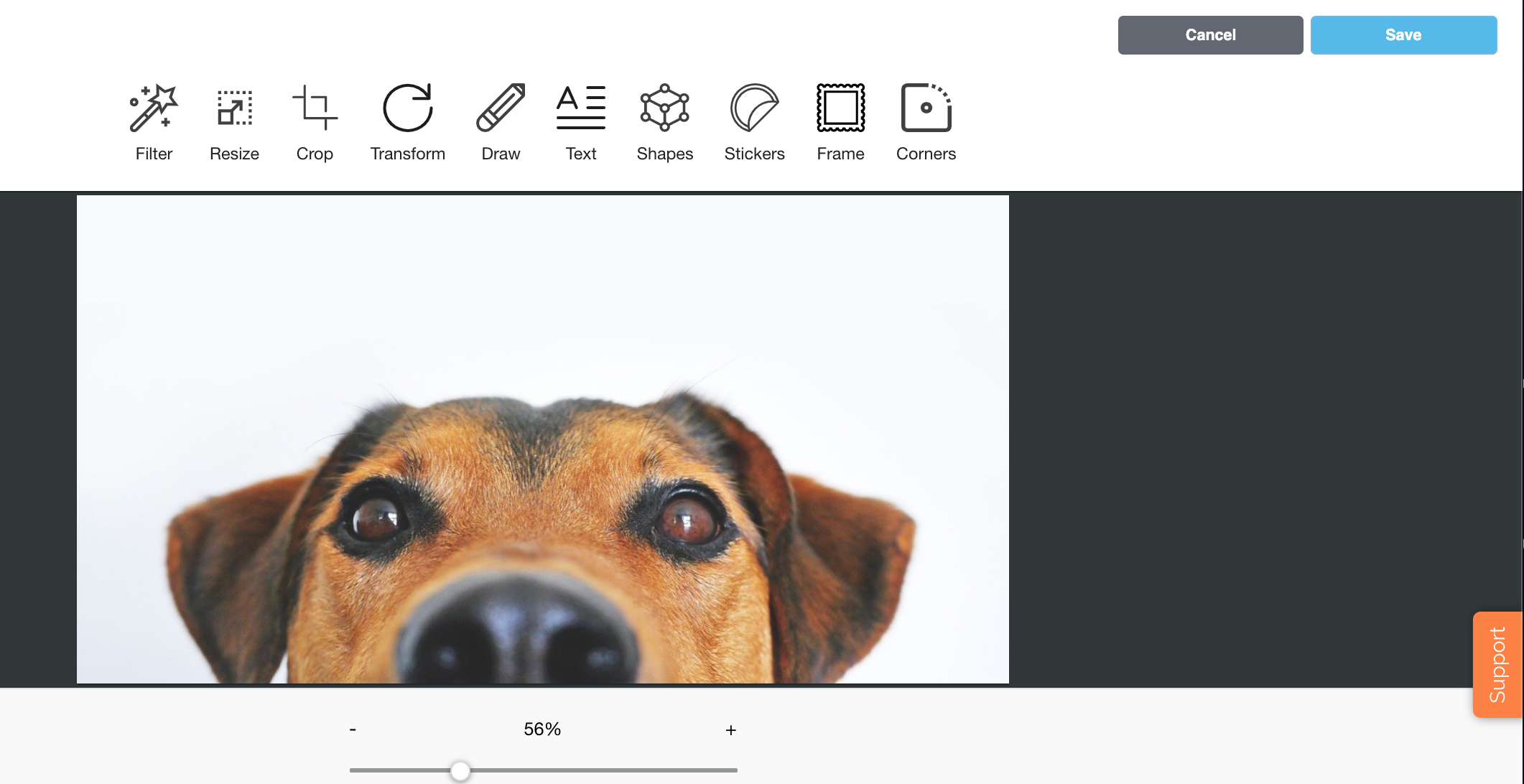
That will pull up the image editor where you can filter, resize, crop, transform, draw, add text, shapes, stickers, frames, and corners.
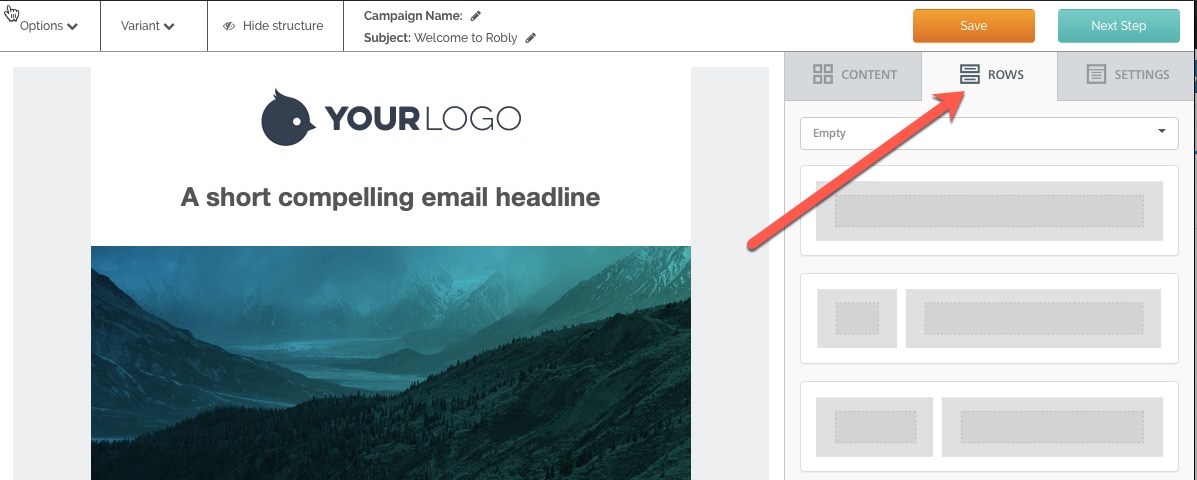
To add columns or images/text side by side, first click on the Rows tab in the Drop Module menu.
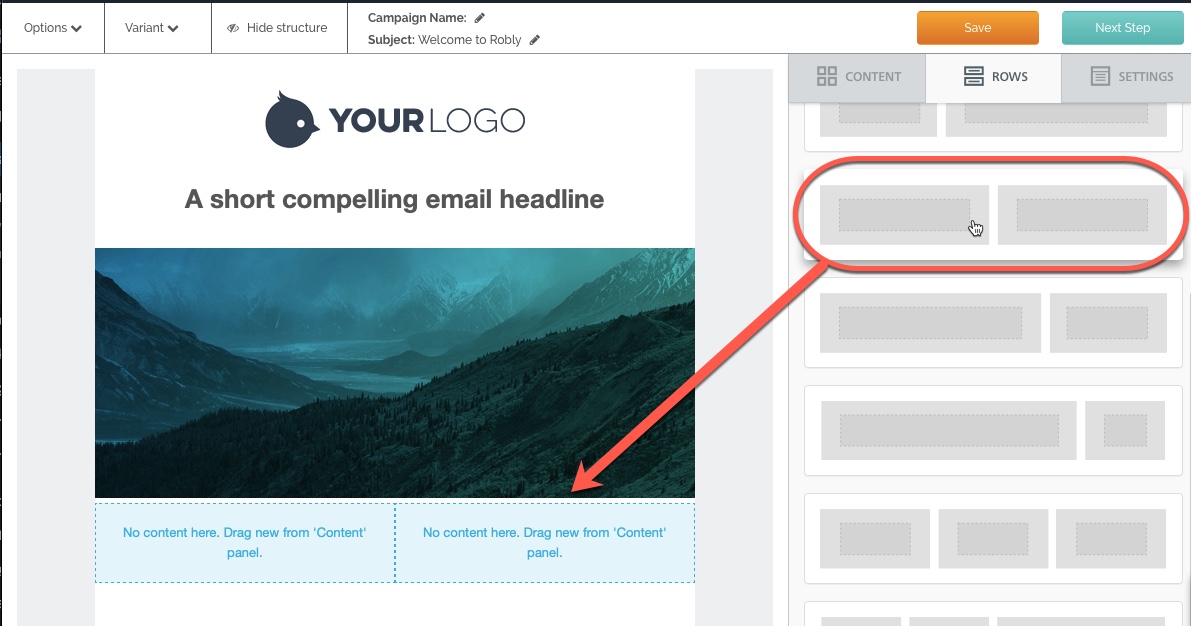
Second, drag in any of the various column modules.
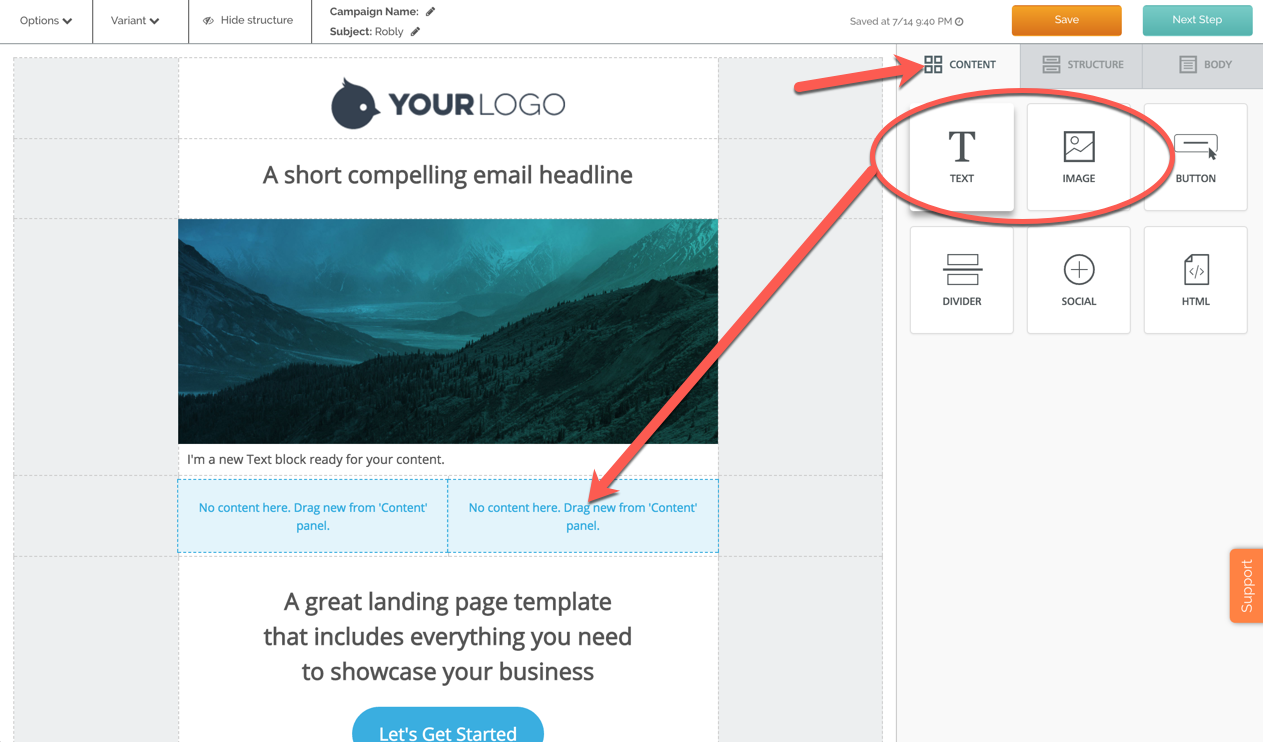
Next, click back to the Content tab in the Drop Module menu. And finally, drag content modules, such as images or text, into each section or column.
Have questions? Message us on chat, or email support@robly.com!