Robly automatically places an opt-out link in the footer of every email you send out. But oftentimes, it’s a great idea to put one at the top, too. This can help prevent SPAM complaints because people may be more likely to opt out if they see that option immediately (ie before they get to the bottom of the email). Here’s how to add one to your campaign:
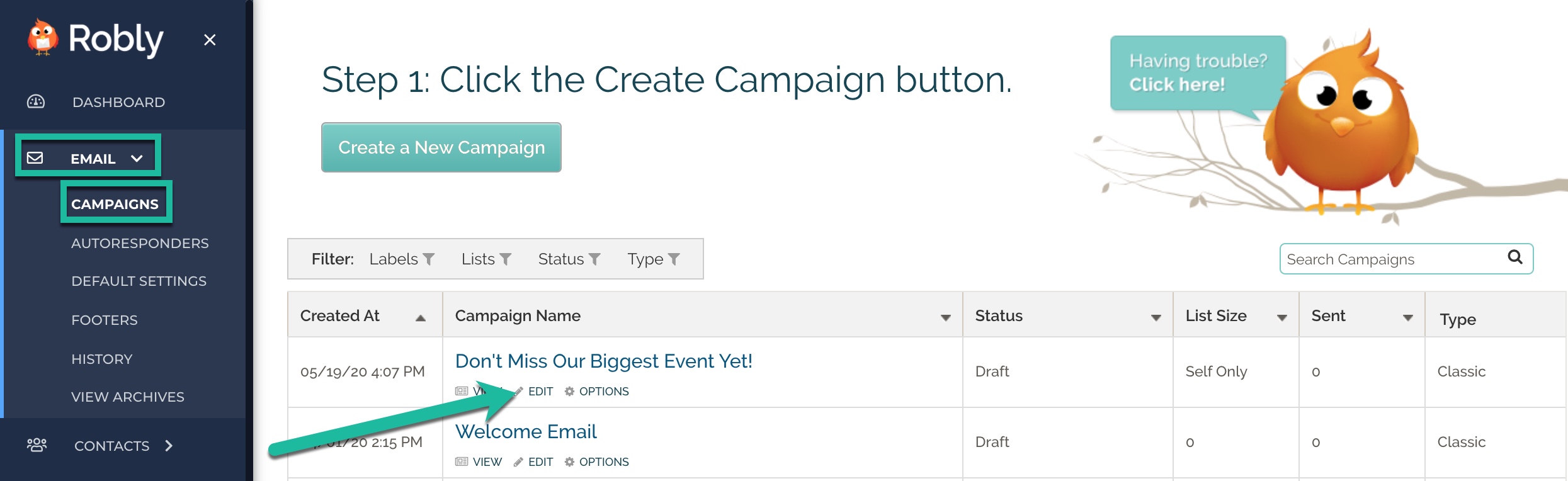
1. Click Edit under the campaign name you want to add the opt-out link to in Email > Campaigns:
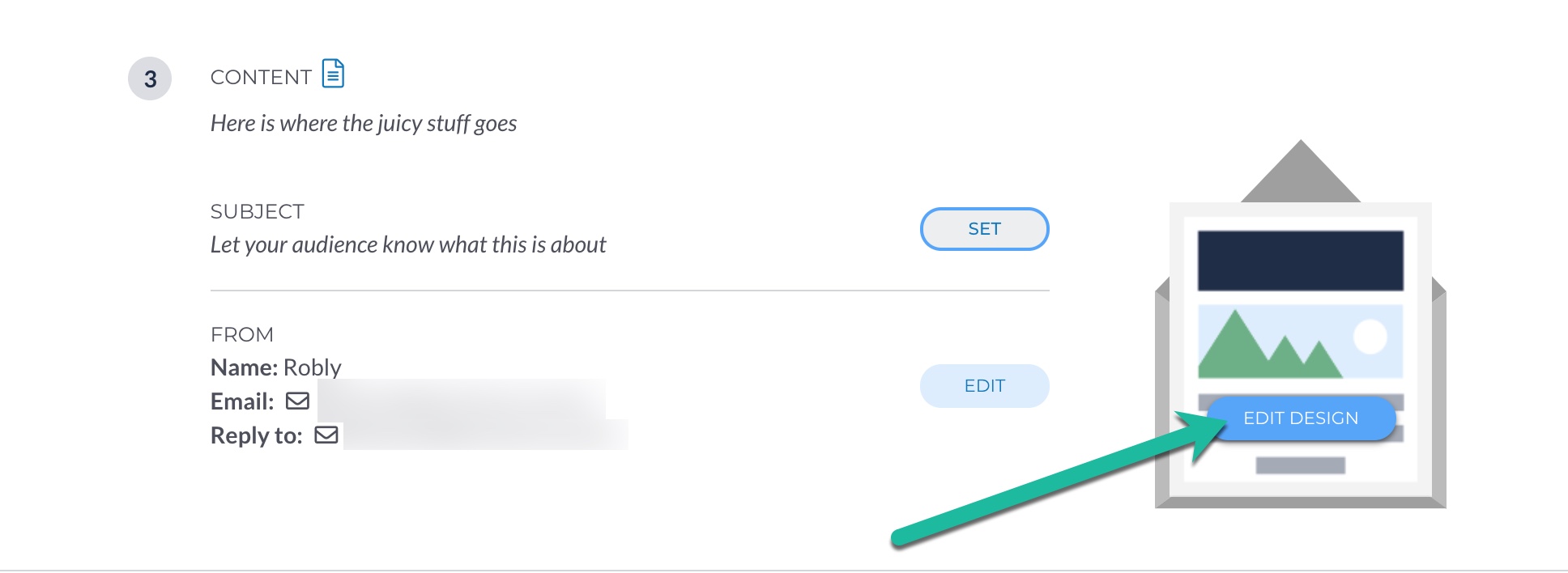
2. Scroll down to the Content section, and click Edit Design.
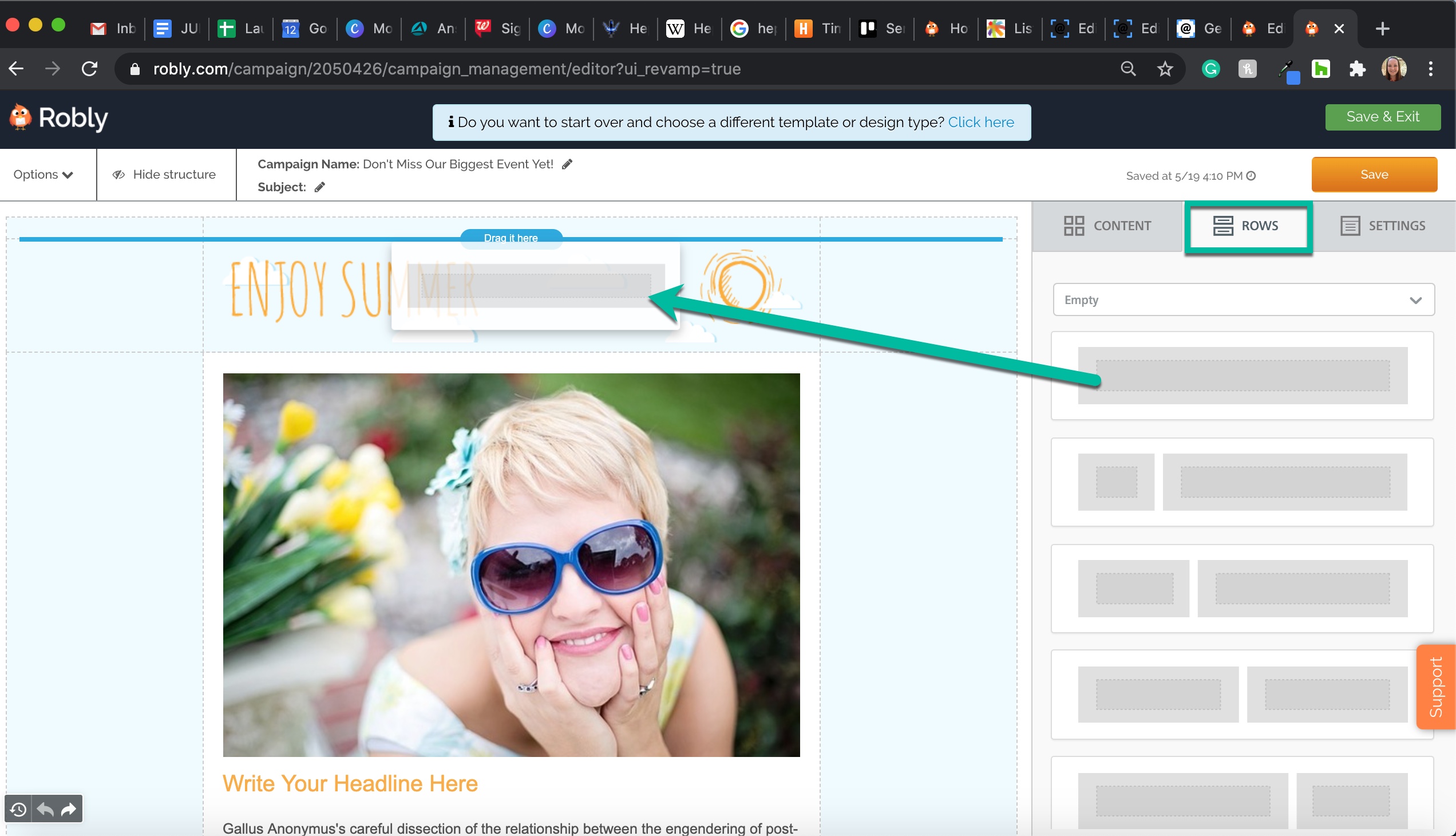
3. Click Rows, and drag a new, full-width row to the top of your email.
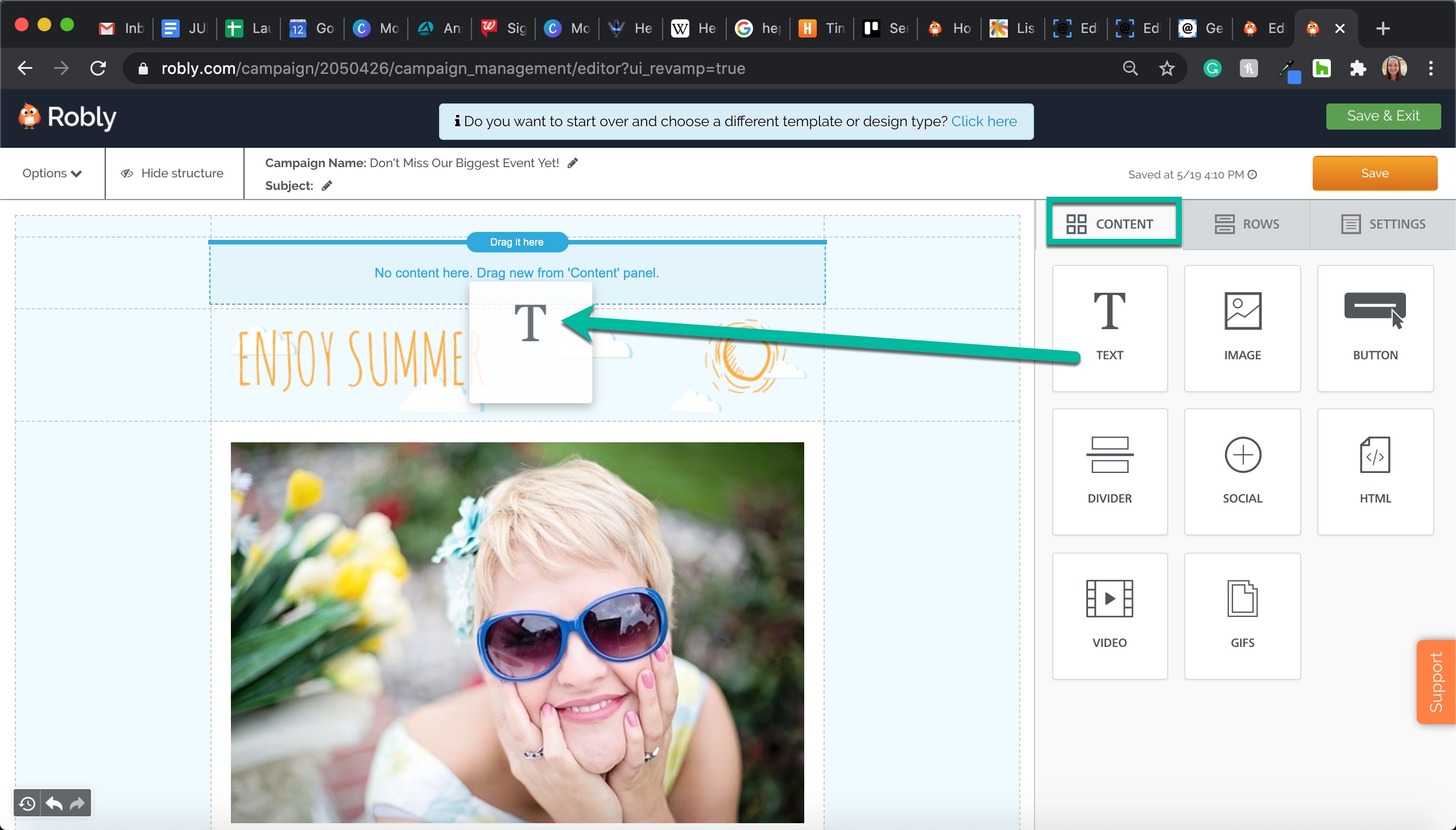
4. Click the Content tab. Then, drag a Text content module into the row you just created.
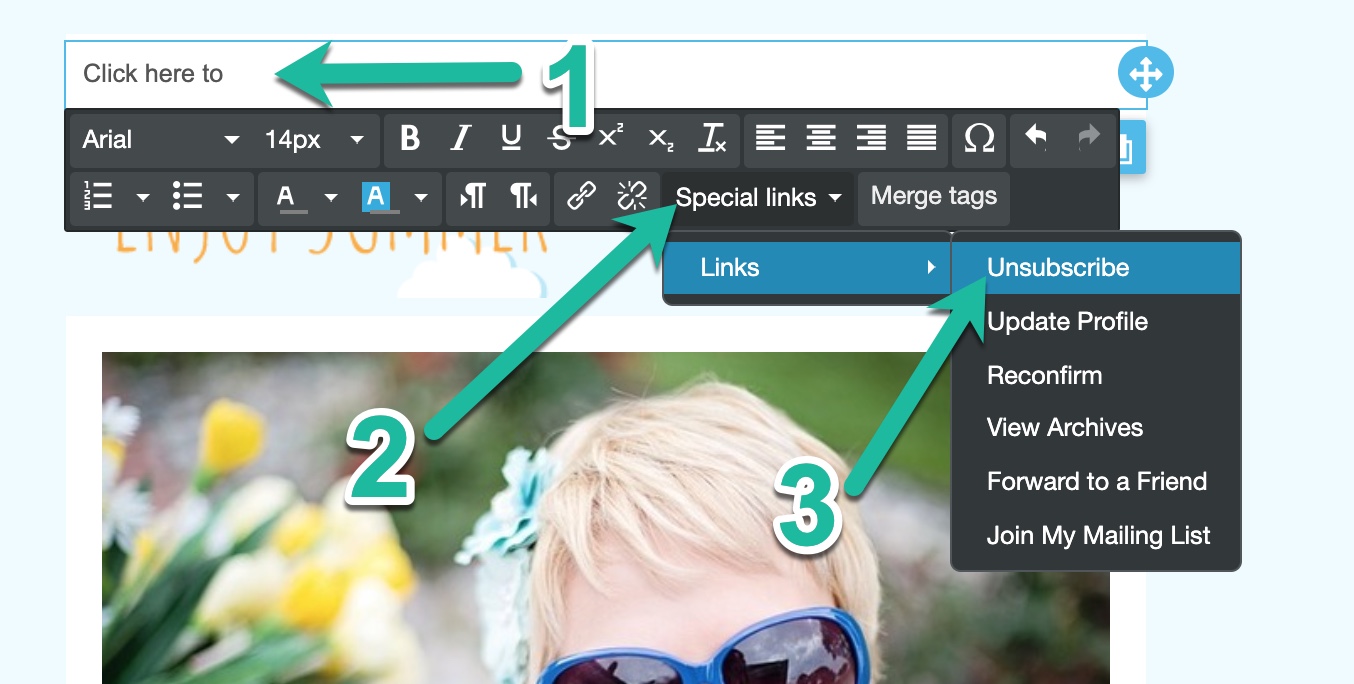
5. Now, you’ll insert a merge tag that will display as “Unsubscribe” in your sent campaign. Replace the filler text with the text you want around the word Unsubscribe, for example, “Click here to.” Then, click Special Links > Links and select Unsubscribe.
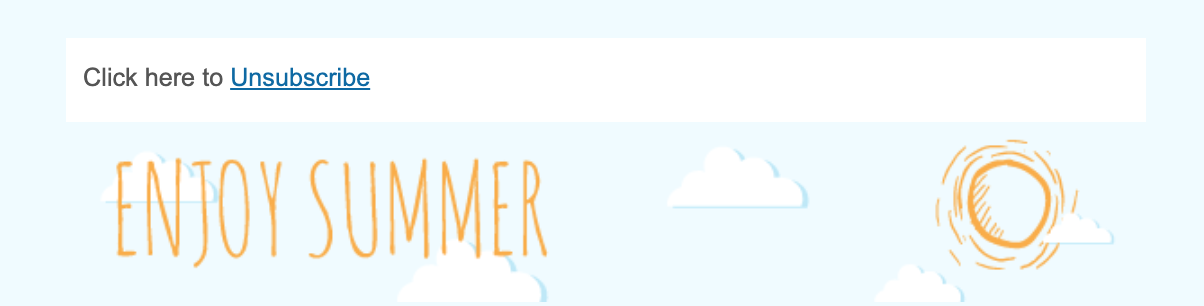
6. The final version should look something like this.
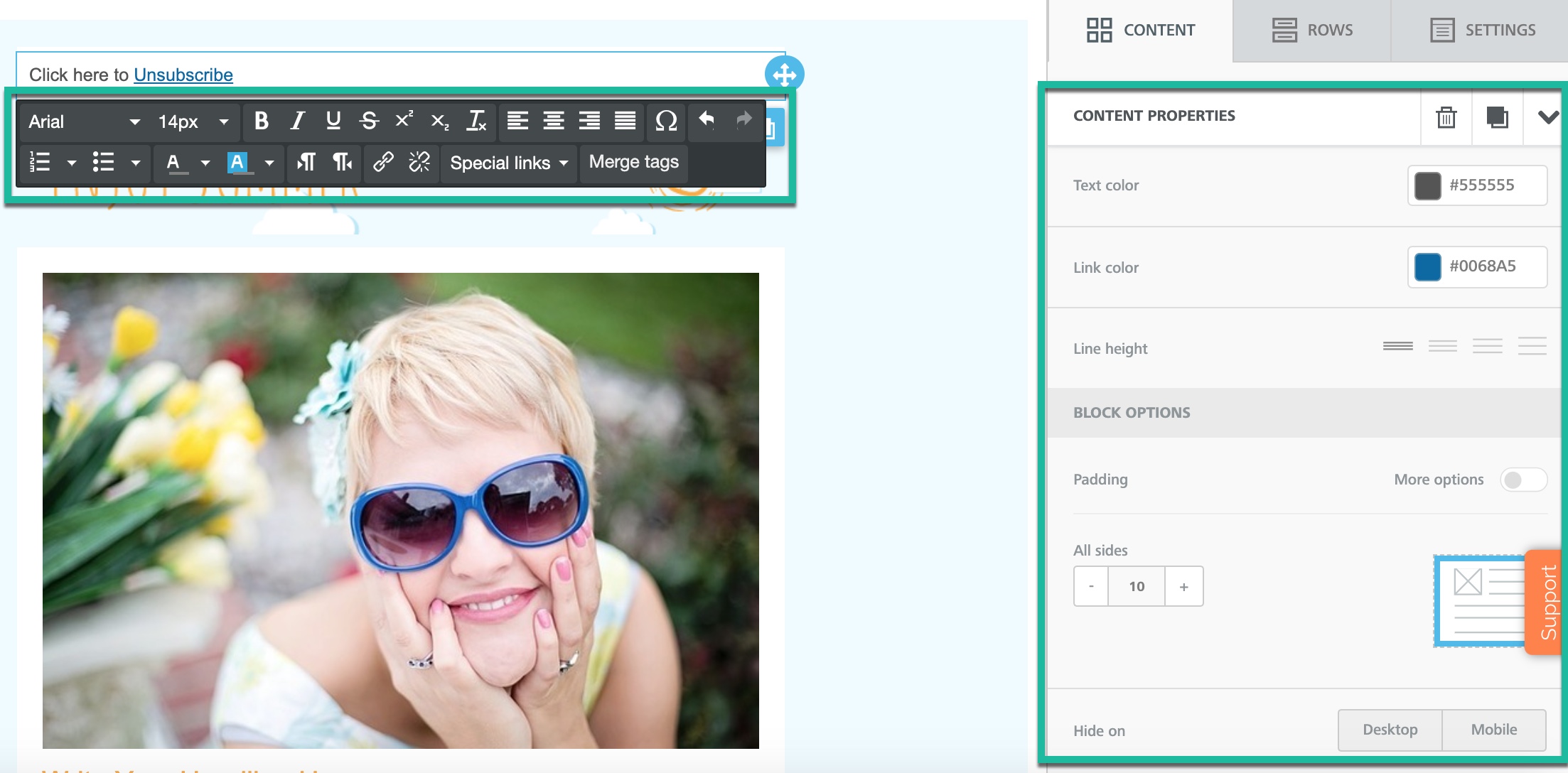
7. You can also adjust the formatting to match the rest of your campaign.
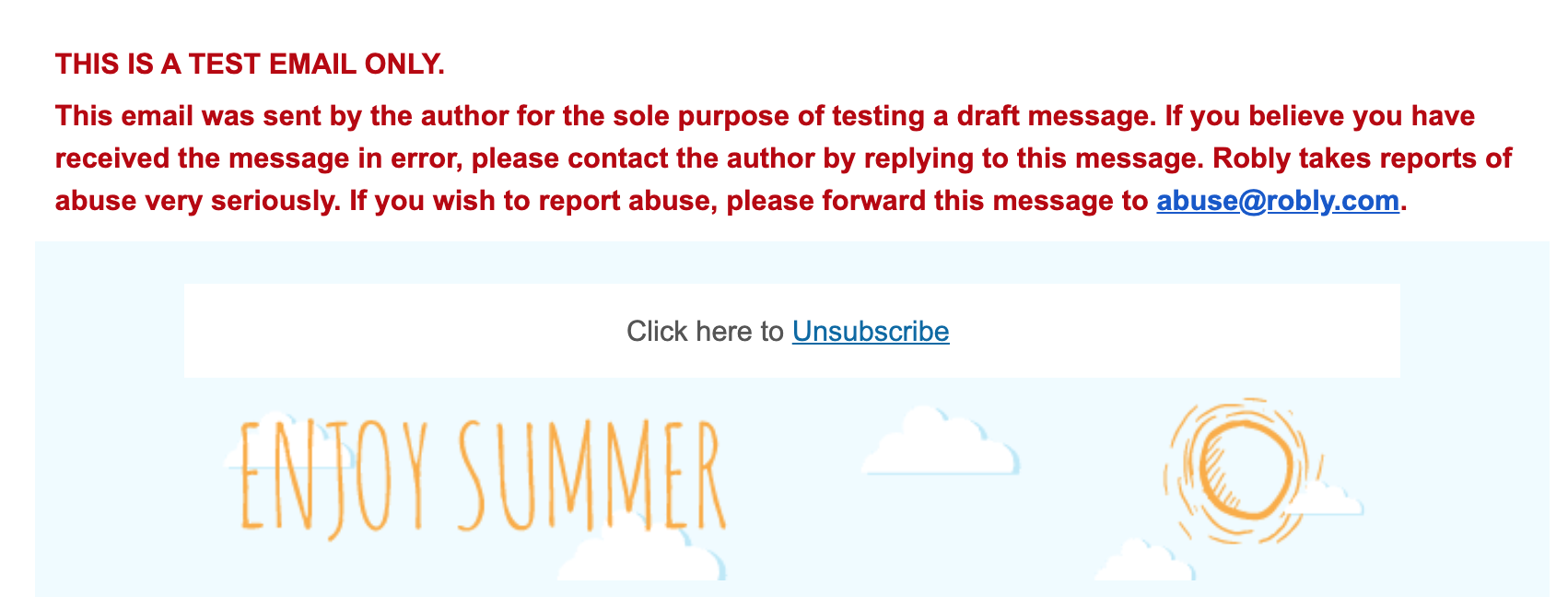
8. Send yourself a test email by clicking Options > Send Test Email to check out how it looks!

This is how the test email should look.
Have questions? Message us on chat, or email support@robly.com!