SMS campaigns are known for their near-instant engagement, and you can use Robly’s user-friendly tools to create one for your audience. From building to scheduling the SMS campaign, you can do it all in Robly. Here’s how!
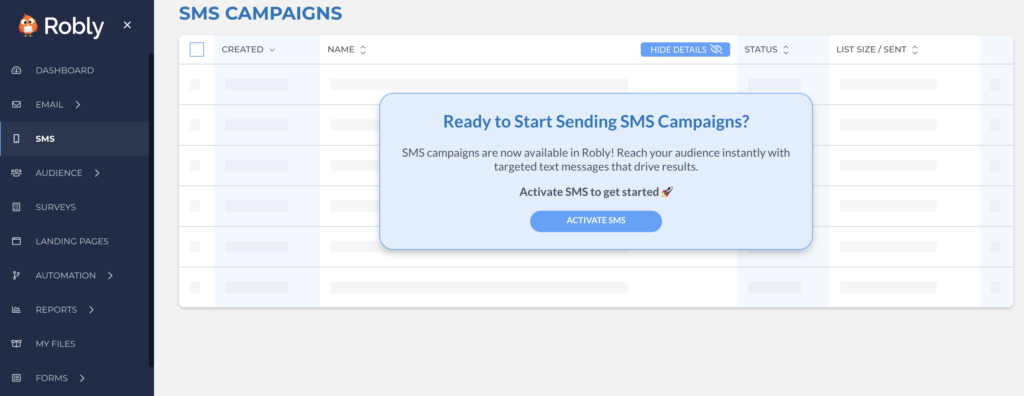
1. Before you can send an SMS campaign, you’ll need to Activate SMS in your Robly account. Click here for steps on how to sign up for SMS.
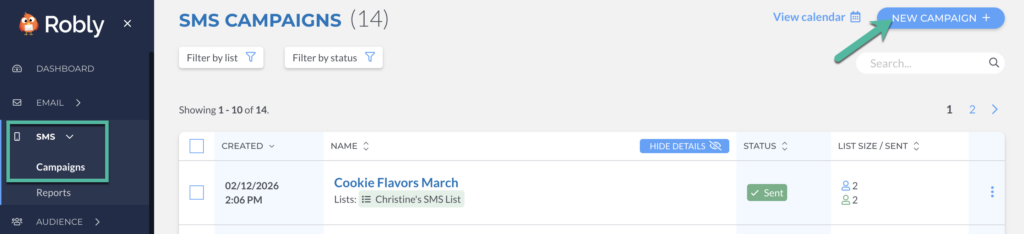
2. Once that’s set up, go to SMS > Campaigns > New Campaign.
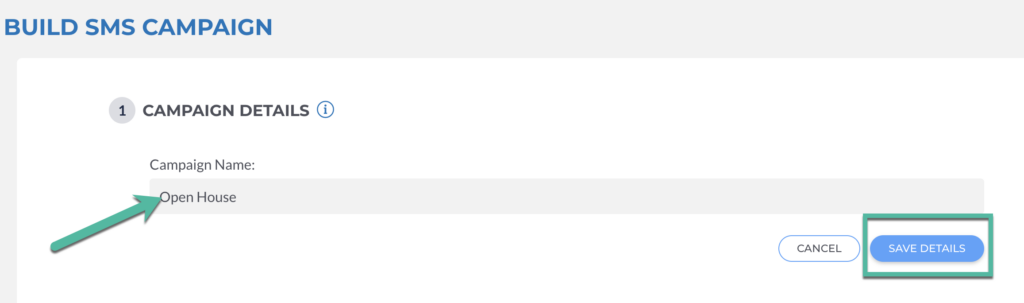
3. Inside of the campaign builder, click Set Details next to Campaign Details.

4. Give the campaign a name, click Save Details.
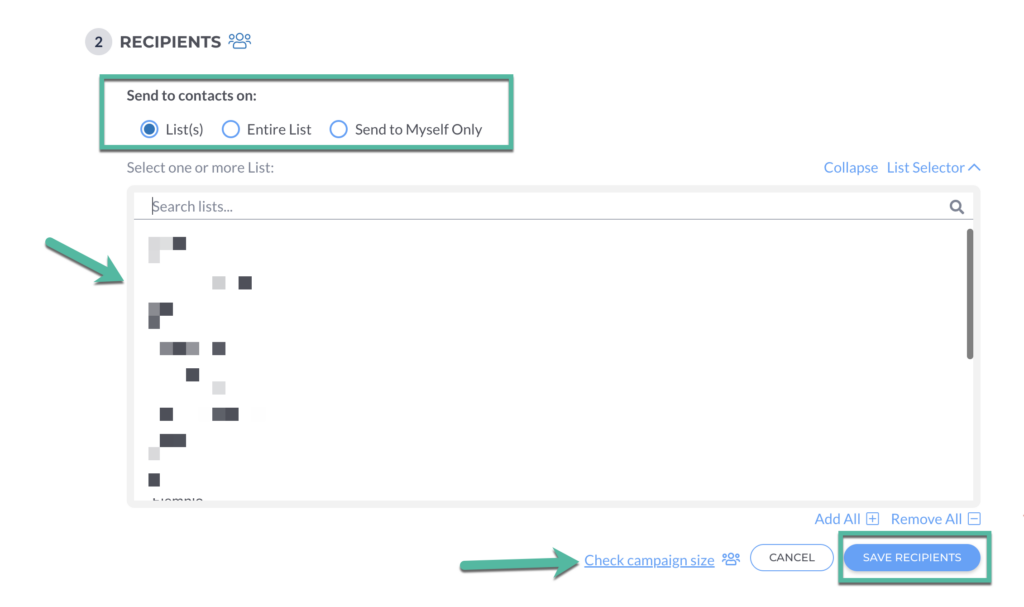
5. Next, choose the recipients who you want to receive the SMS campaign.

6. You can select individual lists, the entire list, or send the campaign only to yourself. After you’ve selected the audience, you can also check how many people it will be sent to by clicking Check campaign size. When you’re finished, click Save Recipients.
7. Now it’s time to set your content for the campaign.

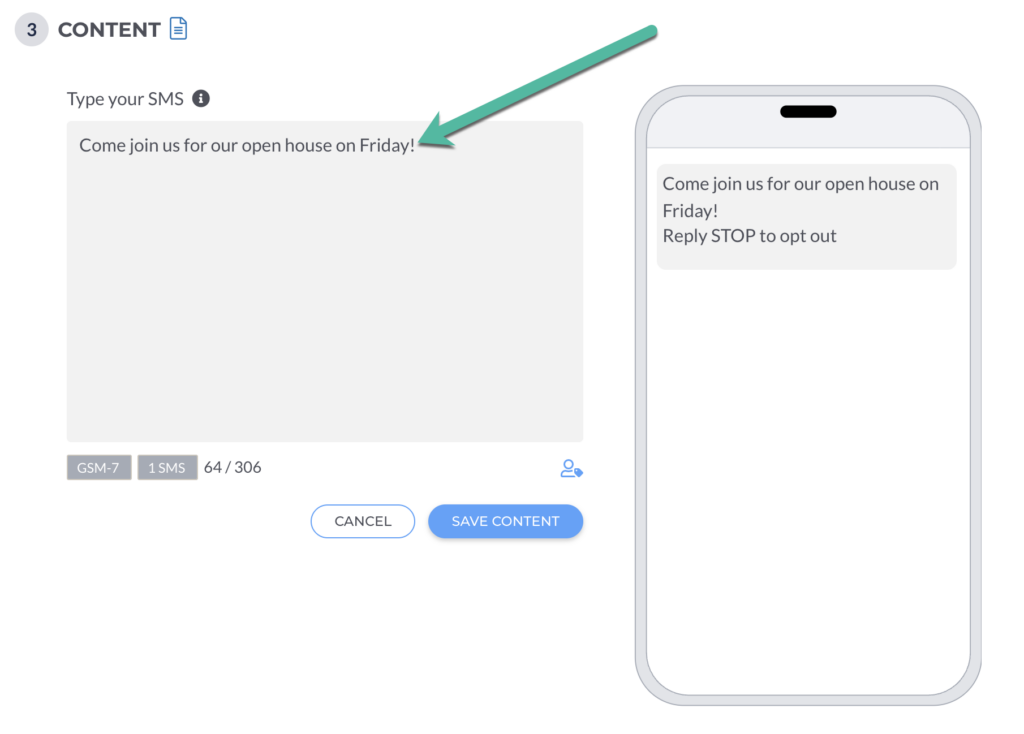
8. Type the text for your message in the box, and it will automatically populate on the phone preview screen. The message is limited to 306 characters.
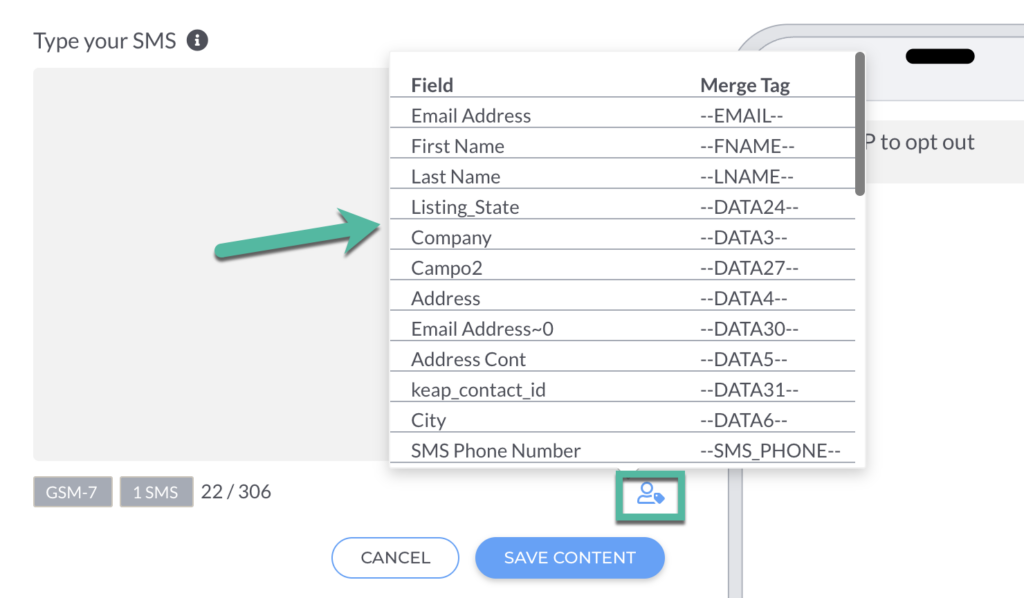
You can also click the Tag icon to select merge tags that can be added to message.
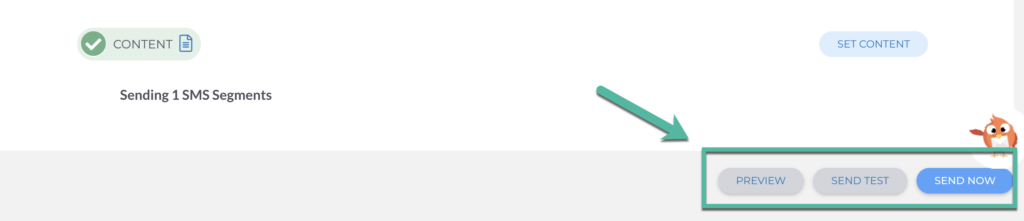
9. Once you’re finished with the text, click Save Content.
10. You can then choose to Preview, Send Test, or Send Now.
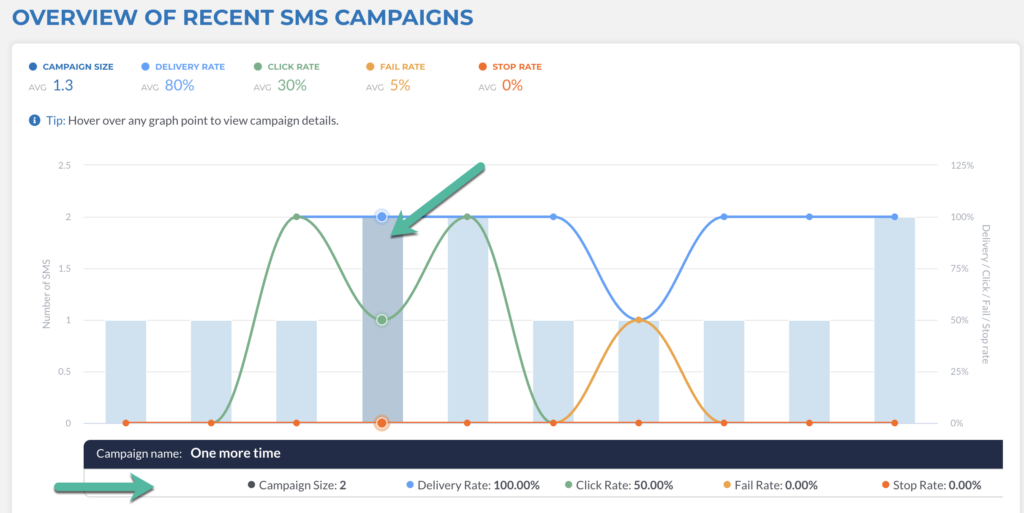
11. Once the SMS campaign has been sent, go to SMS > Reports to view an overview of recent SMS campaigns. The reporting will show you when the campaign was sent, list size, delivery rate, clicks, failed, and stops.
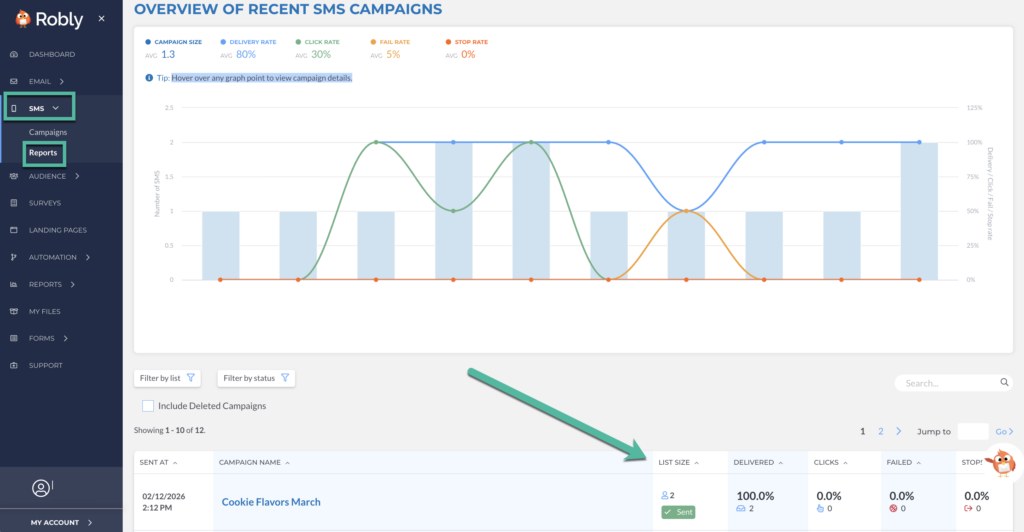
12. You can also hover over any graph point to view the campaign details.
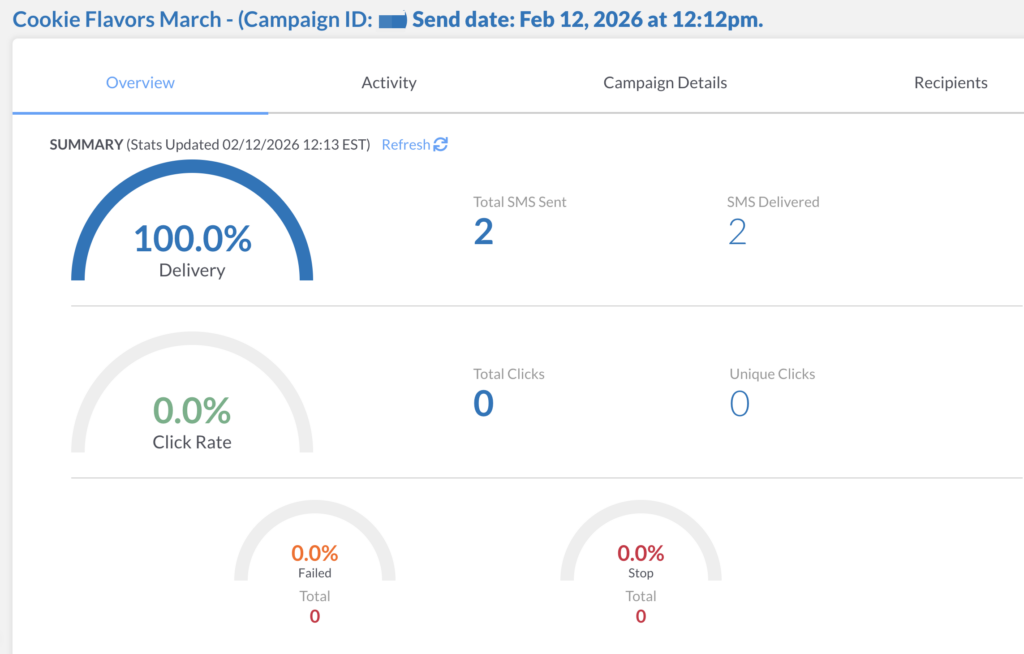
13. To see a breakdown of each campaign, click on the campaign name.
Have questions? Message us on chat, or email support@robly.com!