You can now sign up to send SMS messages from your Robly account. Here’s how to set that up.
1. In the left-hand navigation, go to My Account > Settings > Subscription. Next to Send SMS, toggle to Yes. Select the number of monthly credits you would like to add: 500, 1K, 2.5K, or 5K. You’ll see the price per credit and monthly price when you click on each option.
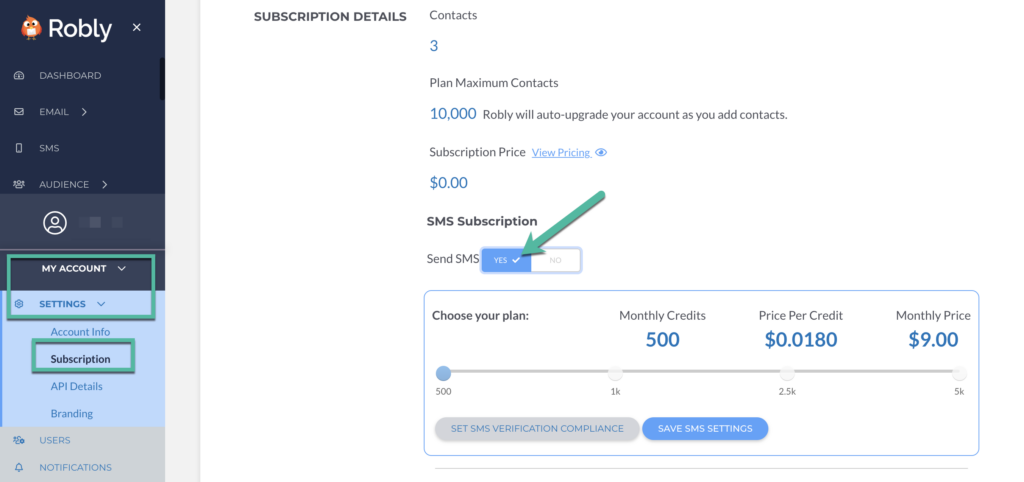
Remember: The credits don’t roll over month to month, so choose the amount of credits you think you will use each month.
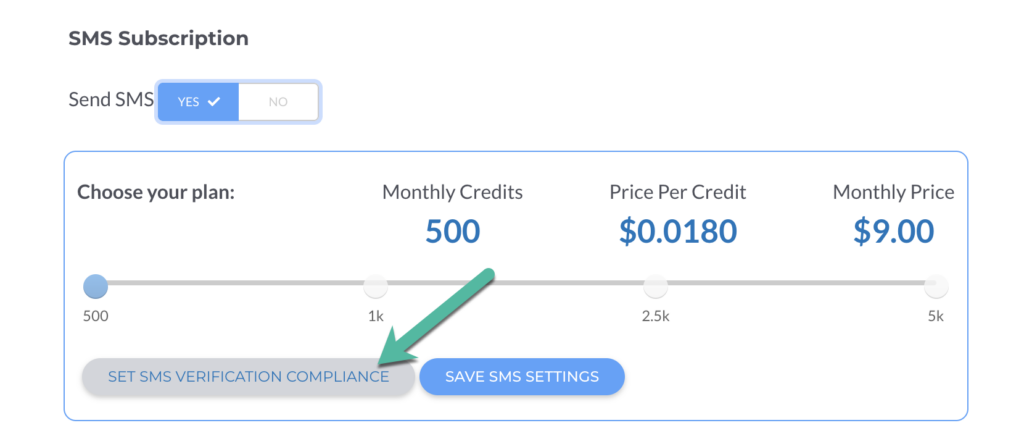
2. Click Set SMS Verification Compliance.
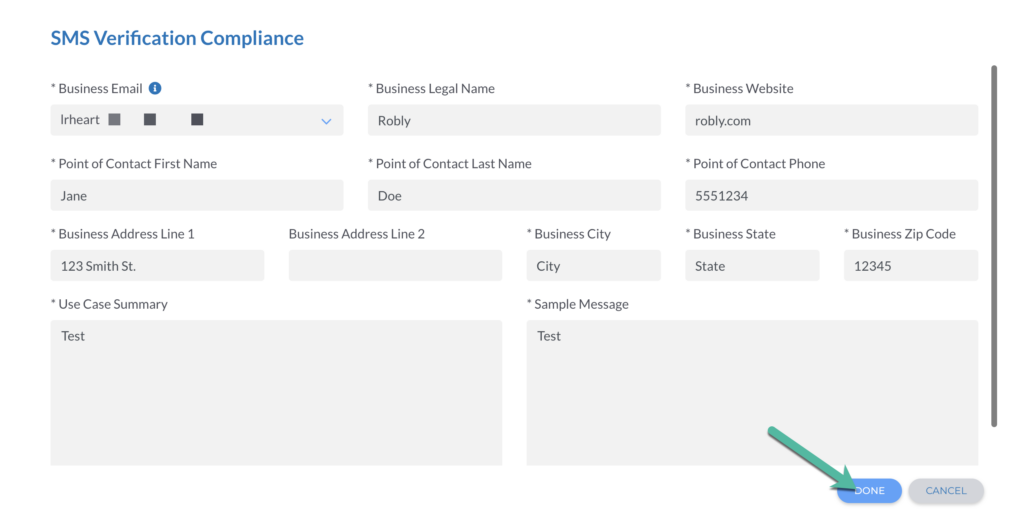
3. Fill in all of the required fields, and click Done.
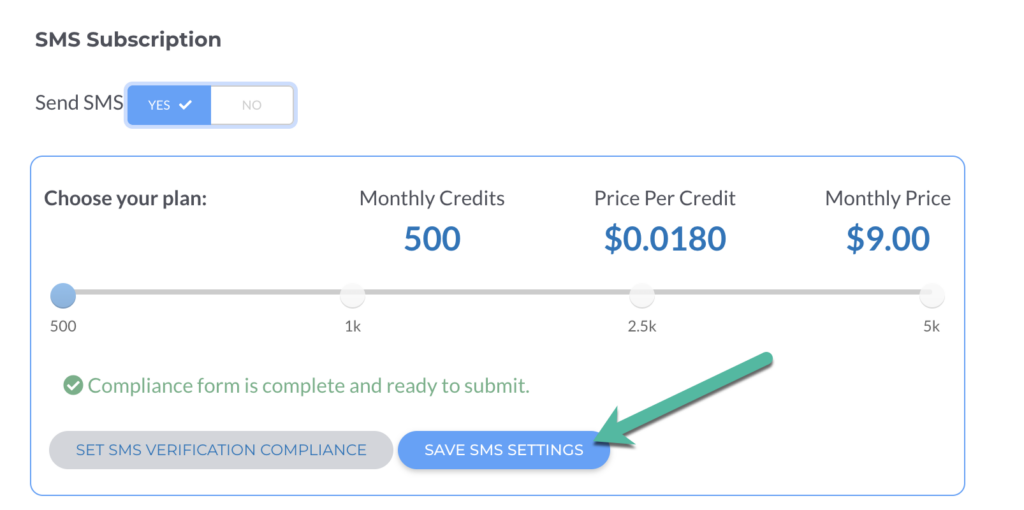
4. You’ll see a verification message that your compliance form is complete and ready to send. Then, click Save SMS Settings.
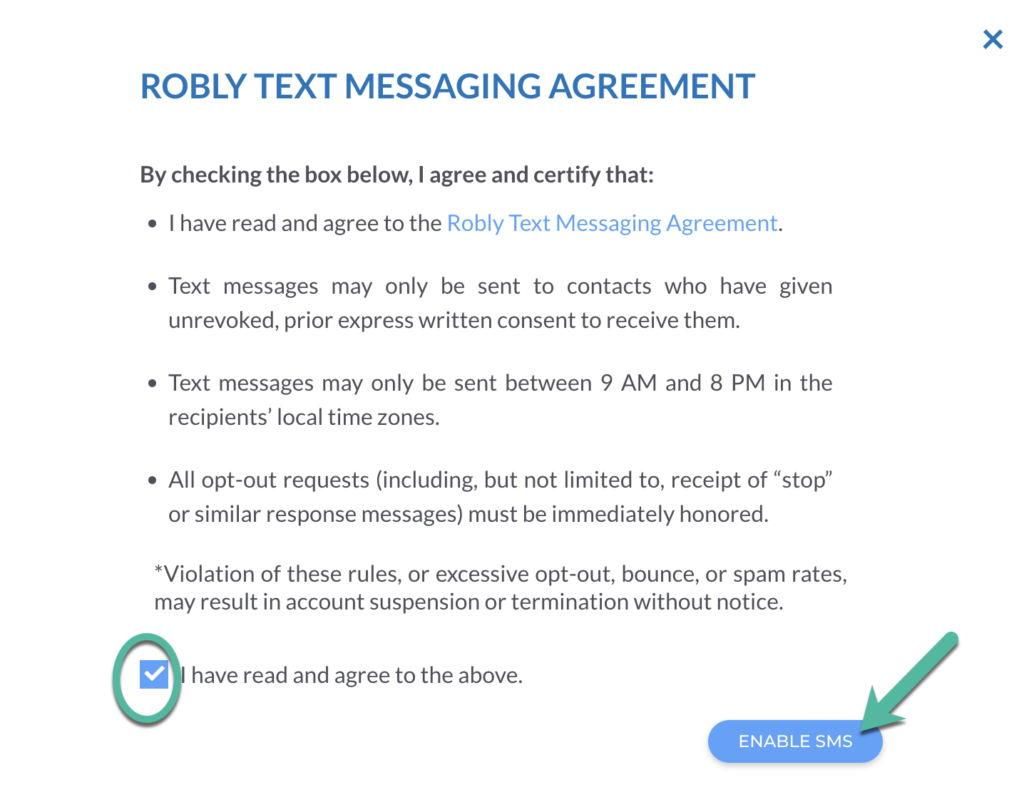
5. Check the box stating you have read and agree to the Robly text messaging agreement, and click Enable SMS.
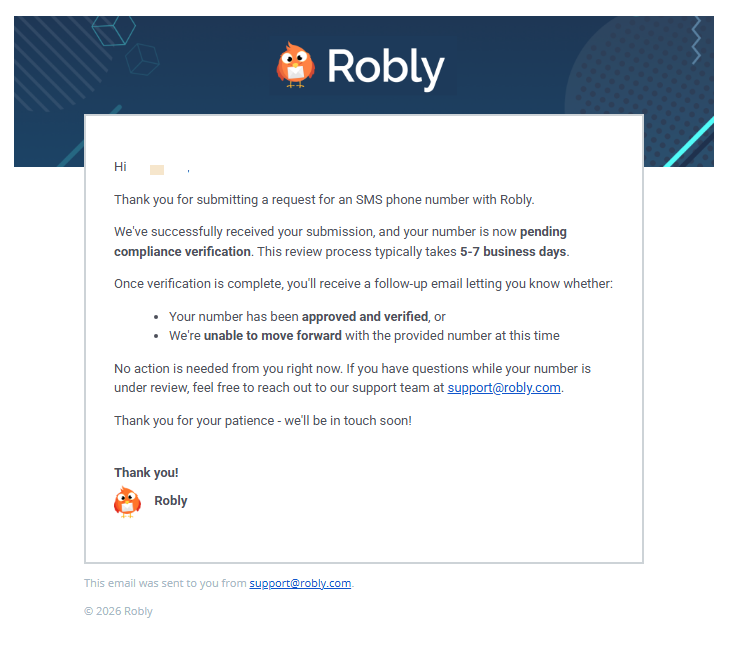
6. You will receive an email from support@robly.com letting you know we’ve received your request for SMS. The verification process typically takes 5 to 7 business days.
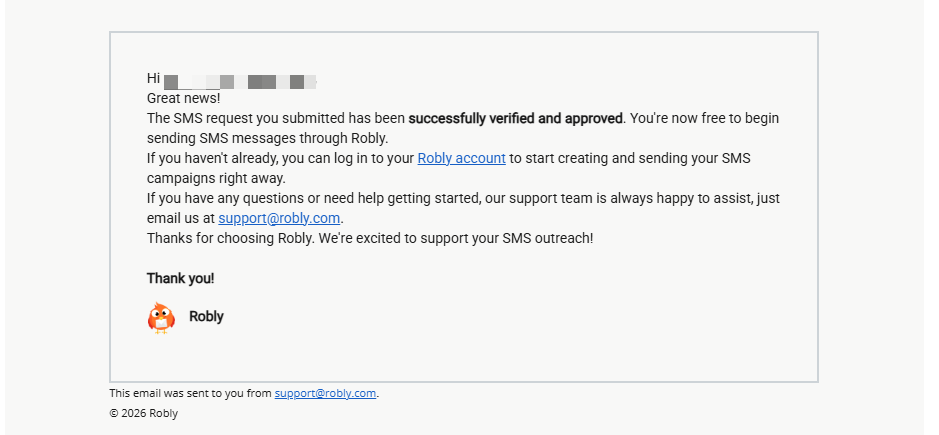
7. Once compliance verification has been completed, you will receive another email from Robly letting you know if your request was approved. If it was successfully verified and approved, you will receive this email and can begin sending SMS messages through Robly.
You’ll also receive an email from support@robly.com that includes all of the information you provided in the SMS Verification Compliance section.
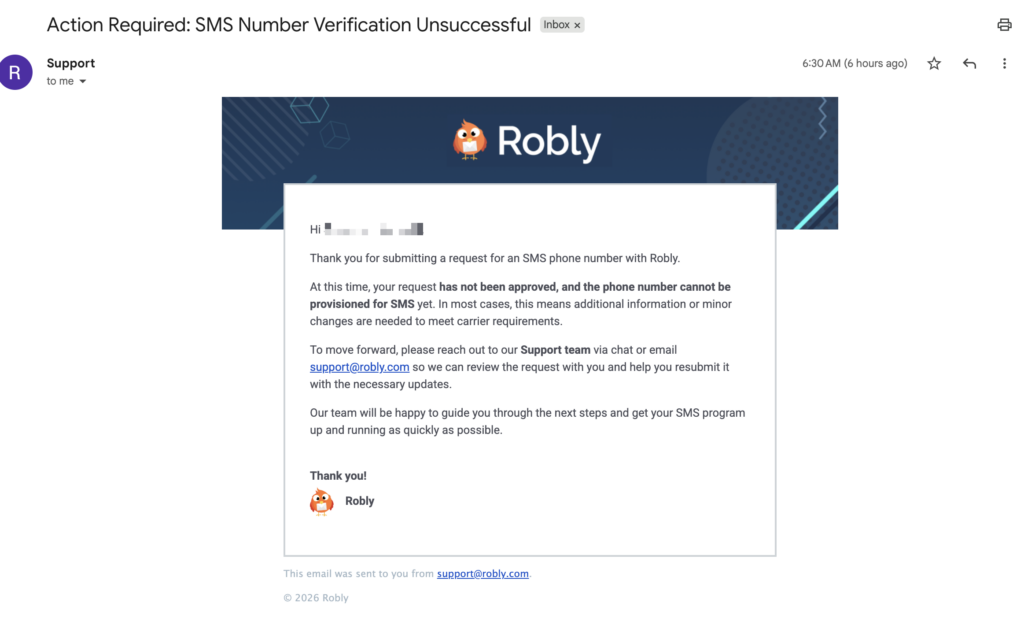
8. If your request has not been approved, you will receive this email. You’ll need to reach out to our support team via chat or email support@robly.com so we can review your request and help you resubmit it with the necessary updates.
Have questions? Message us on chat, or email support@robly.com!