**Currently, you can only insert a PDF as a link within your text, not as an image. If you have a PDF you want to insert as an image, you will need to convert it to a JPG or PNG first**
You can link to a PDF from a text link, button, or image.
You cannot insert a PDF as an image, because a PDF is NOT an image file. You would need to convert your PDF into a JPG or PNG first in order to do this.
Link to a PDF from Text
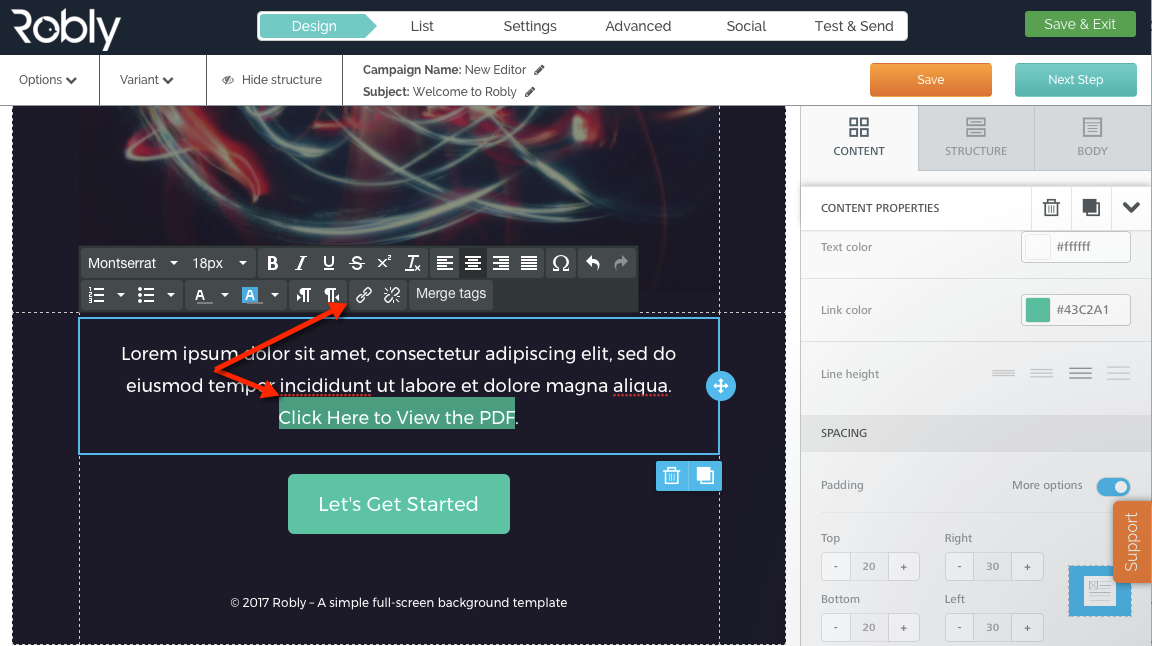
1. First, highlight the word you want to link to with your cursor. Then click the link icon in the text editor:
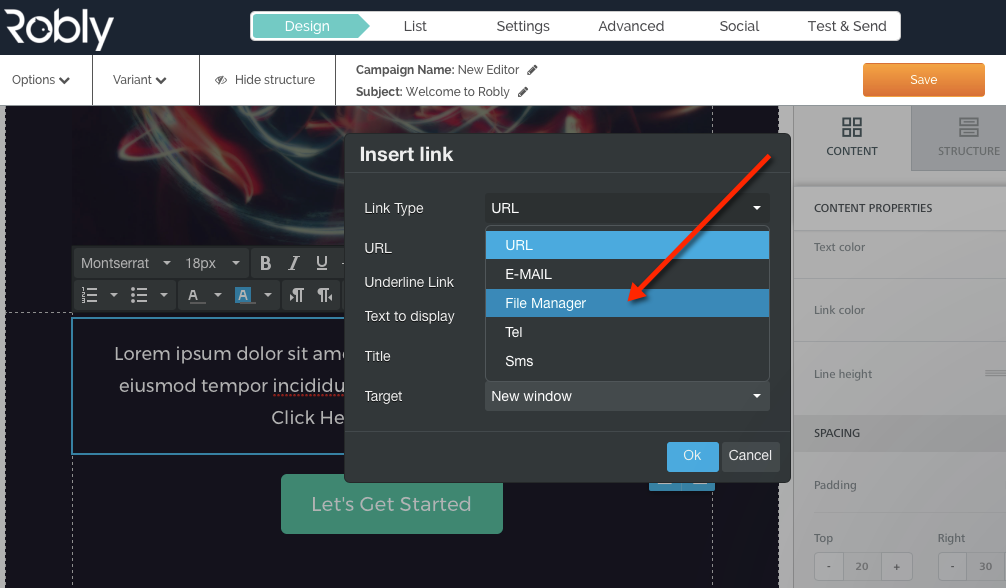
2. Then, click on File Manager from the drop down menu:
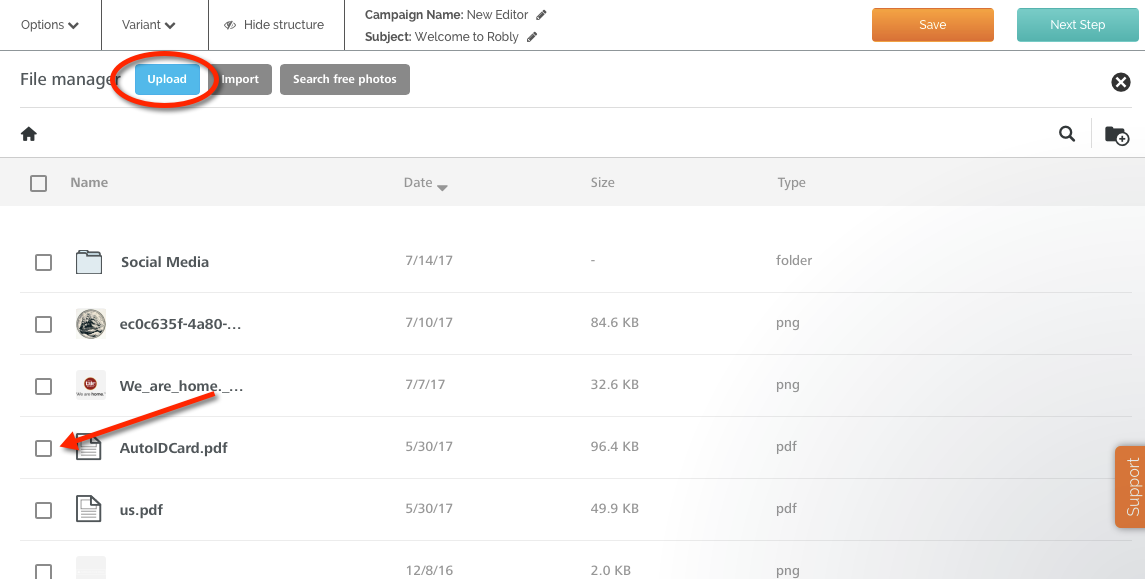
3. From here, you can Upload a New PDF or click Insert to choose an existing PDF.
4. Once you click Insert, you will see the popup window again where you can make any changes. Click OK:

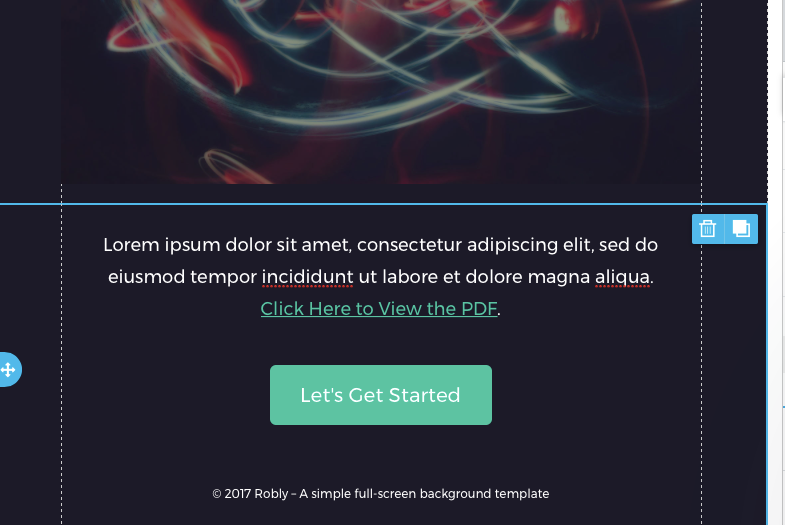
5. You will now see your linked text – send yourself a test email under Options to test it:
Link to a PDF From a Button or Image
1. First, drag a button or image into your email from the Content menu on the right. Find the URL field on the right hand side and click Link File:
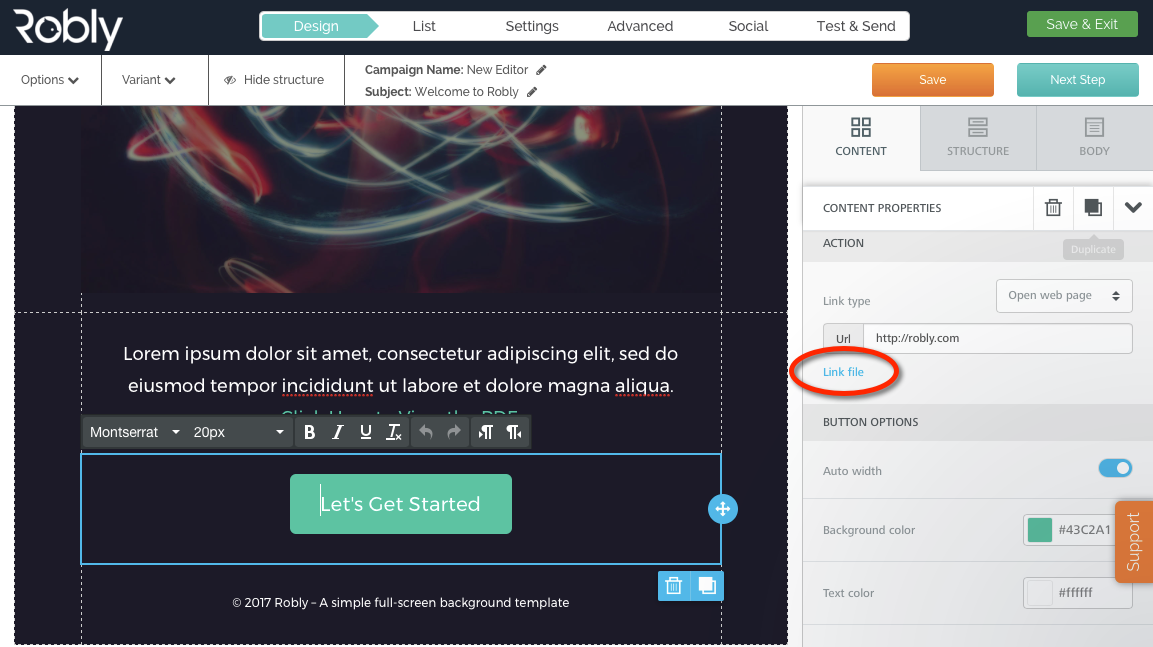
2. Follow steps 2 through 4 above!
3. Send yourself a test email under Options to test the link!
Have questions? Message us on chat, or email support@robly.com!